Monday January 26, 2026
Advertisement
Edit
The Current Bite The Current Bite
  • most recent news
  • trending news
  • most read
  • All Video
  • Image gallery
  • more
Technology

Introducing Windows 11

August 21, 2021
Technology

Launching Mi 5X Series

August 26, 2021
Mobile

Infinix Hot 11S India

August 27, 2021
News

Xiaomi to invest $10bn

September 1, 2021
News

FBI Alerts About Hive

September 1, 2021
Mobile

OnePlus Buds Pro Matte

September 2, 2021
  • Accessibility
  • Help
  • Contact
  • About qoxag
The Current Bite The Current Bite

Breaking News

Kurukshetra | Official Trailer | Netflix India

Chaniya Toli Trailer | Yash Soni | Anand Pandit, Vaishal

TERE ISHK MEIN TEASER (Hindi) | Dhanush, Kriti Sanon |

UK Police Arrest a Man in Connection with Ransomware Attack

🚨 JLR Extends Production Halt After Cyber Attack 🚨

🚨 URGENT ALERT: SonicWall Releases Critical Update to Fight Rootkit

Garba, Dandiya, and a Whole Lot of Fun: Navratri is

ASIA CUP: India vs Pakistan: A Fiery Clash and a

Kantara Chapter 1 Trailer – Hindi | Rishab Shetty |

BIG BOSS 19: Fun-Filled Captaincy Task Begins | Bigg Boss

The Current Bite The Current Bite
  • Home
  • News
  • Technology
  • Entertainment
  • Sports
  • Gadgets
  • Finance
  • TCB-How to
  1. Home
  2. TCB-How to
  3. How to change or replace the Start Menu in Windows 11
 How to change or replace the Start Menu in Windows 11
TCB-How to

How to change or replace the Start Menu in Windows 11

by qoxag December 1, 2021 0 Comment

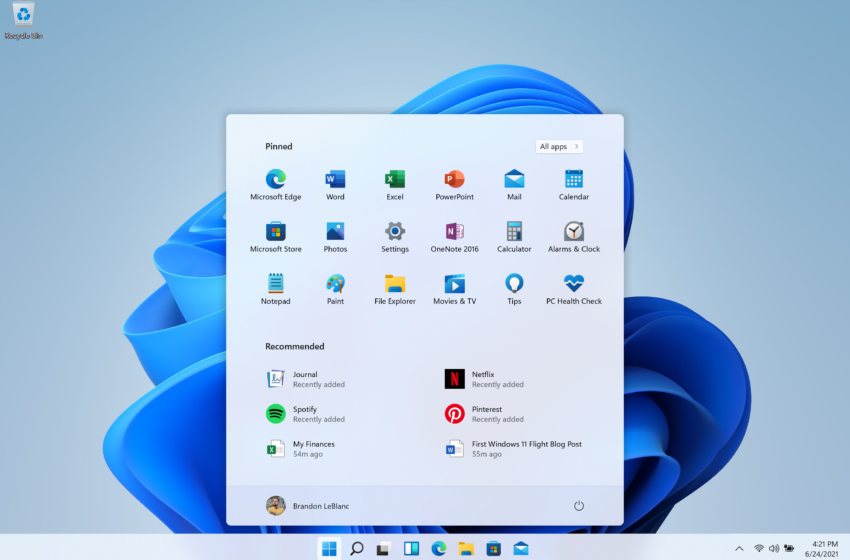
The Windows 11 Start menu looks quite a bit different from the menu in Windows 10. As you can see, pinned items are displayed at the top with all the others accessible through an All apps button. Recommended and recent items are on the bottom half. The power button is how you put your computer to sleep or shut down or restart.

You can change or restore your Classic Start Manu in Window 11 through Window registry tweak.

Step:- 1

Select the search button from the taskbar and type regedit.
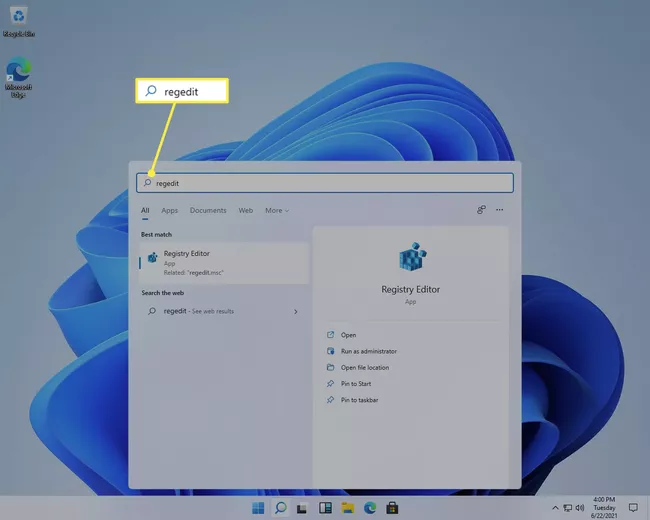
 

2. Select Open when Registry Editor appears.

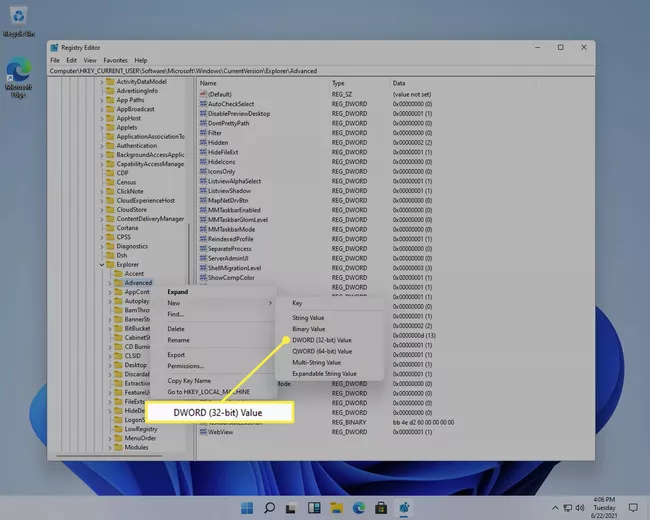
3. Navigate here by expanding the folders from the left pane:

HKEY_CURRENT_USER\Software\Microsoft\Windows\CurrentVersion\Explorer\Advanced

4.Right-click Advanced from the left pane and choose New > DWORD (32-bit) Value.
reg

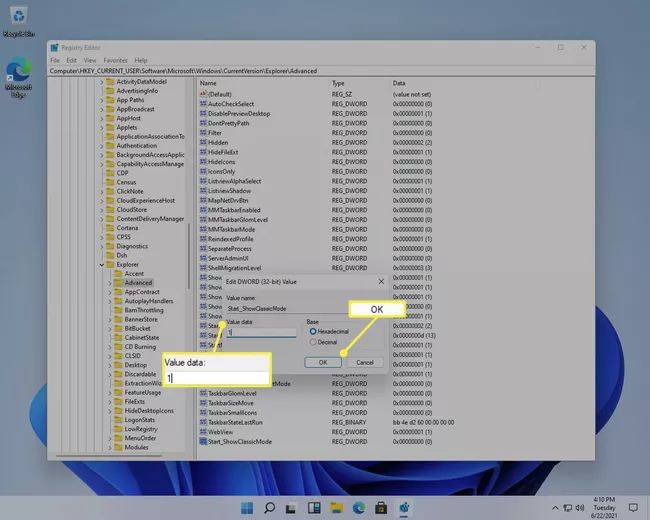
5.Enter this as the new value’s name, and then press Enter to save it.

Start_ShowClassicMode

6.Double-click the same value and change the data to be 1, and then select OK.
7.Restart your computer. The quickest way to reboot Windows 11 is to right-click the Start button and choose Shut down or sign out > Restart

Share This:

  • 0
    Facebook
Previous post
Next post

qoxag (Website)

administrator

Leave a Reply Cancel reply

Your email address will not be published. Required fields are marked *

Categories

  • Entertainment
  • Finance
  • Gaming
  • Mobile
  • Movies Trailers
  • News
  • Sports
  • TCB-How to
  • Technology
  • Uncategorized
Most Recent
Entertainment

Kurukshetra | Official Trailer | Netflix India

October 1, 2025
Entertainment

Chaniya Toli Trailer | Yash Soni |

October 1, 2025
Entertainment

TERE ISHK MEIN TEASER (Hindi) | Dhanush,

October 1, 2025
News

UK Police Arrest a Man in Connection

September 24, 2025
Social Profile

Daily Newsletter

Get all the top stories from Qoxag to keep track.

RELATED Stories for you
Entertainment Movies Trailers

Kurukshetra | Official Trailer | Netflix India

by VICKY October 1, 2025

⚔🔥 Dharm aur Saahas ki amar kahani… ab phir se ghoonjegi Kurukshetra mein!The epic

Entertainment Movies Trailers

Chaniya Toli Trailer | Yash Soni |

by VICKY October 1, 2025

✨ Get ready for a festive ride with “ચણિયા ટોળી” 💃🪘A story full of

Entertainment Movies Trailers

TERE ISHK MEIN TEASER (Hindi) | Dhanush,

by VICKY October 1, 2025

❤️‍🔥 Ishq sirf kiya nahi jaata… usme mitne ki tayyari bhi hoti hai!#TereIshkMein —

Copyright © 2026 Teqtive Solutions. All Right Reserved.